'/%3E%3C/svg%3E)

'/%3E%3Cpath%20fill='%23b2b2b2'%20d='M241%20382q0%2016%2017%2026%2017%2011%2042%2011t42-11q16-11%2017-26V269H241'/%3E%3Cpath%20fill='%239f7e00'%20d='M241%20379q0%2014%208%2023%209%209%2021%209%2014%200%2021-9%209-9%209-23V269h-59'/%3E%3Cpath%20d='M241%20339v-70h59v110q0%2014-9%2023l-6%205v-68h-15v72q-8%200-14-4v-68zm59%2040c0%2022%2015%2032%2029%2032%2021%200%2030-18%2030-32v-40h-59'/%3E%3Cpath%20fill='%239f7e00'%20d='M266%20277v5h2v12h-3v-5h2v-5h-9v5h2v5h-4v9h3v18h-5v10h34v-10h-5v-18h3v-9h-4v-5h2v-5h-9v5h2v5h-3v-12h2v-5zm42%20101q0%2010%206%2017%206%206%2015%207%2010-1%2016-7%206-7%206-17v-29h-43'/%3E%3Ccircle%20fill='%230044ad'%20cx='329.5'%20cy='372'%20r='6'/%3E%3Cellipse%20fill='%230044ad'%20cx='300'%20cy='340'%20rx='16'%20ry='21'/%3E%3C/svg%3E)




This article was produced in collaboration with Valnet Inc’s sponsor, Dreamhaven.
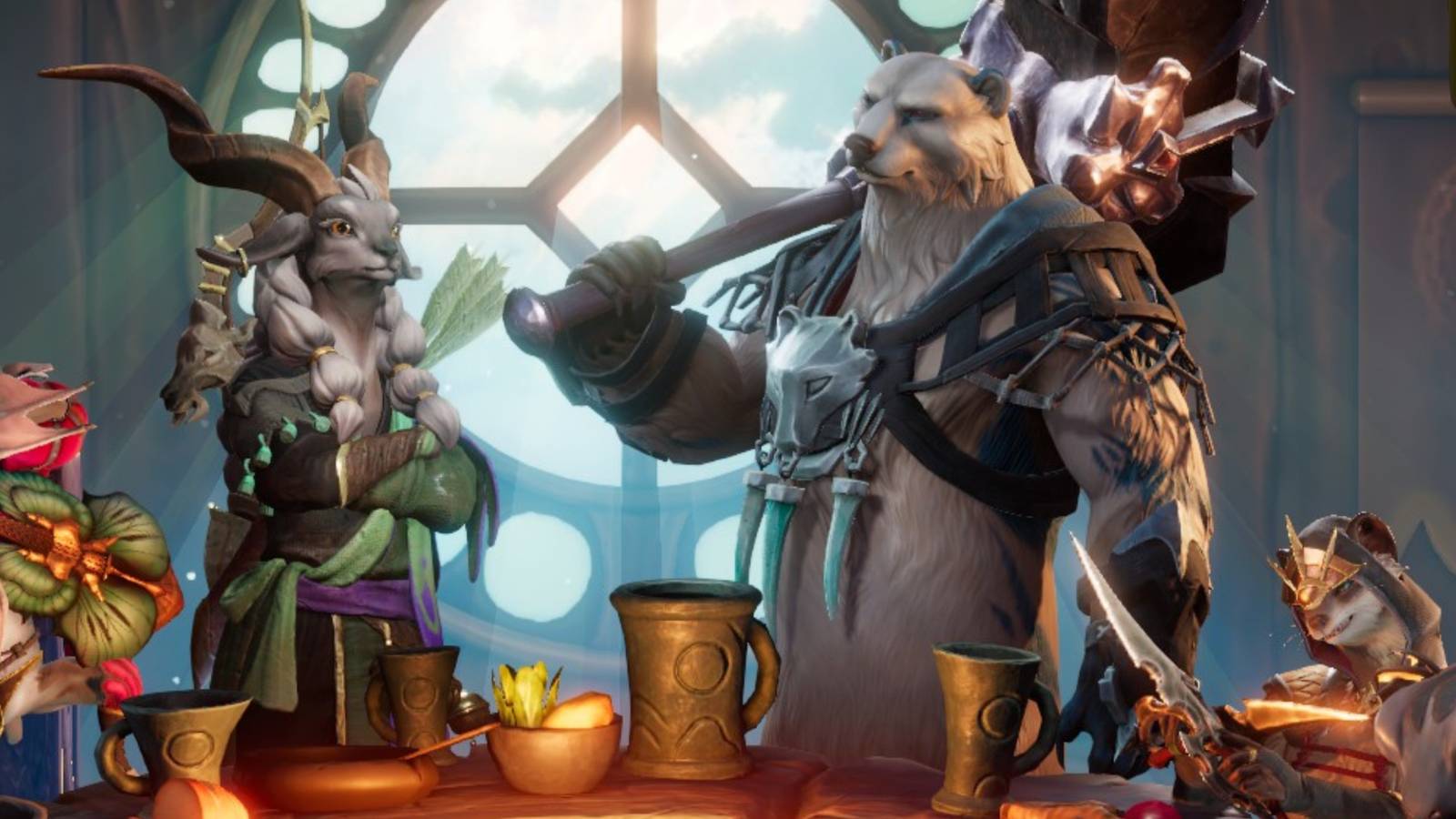
Sunderfolk is a great game to share with family or friends, with a unique party-on-the-go system that allows players to instantly join the action using their phones and a basic mobile interface (app). So it’s basically a couch co-op tactical RPG heavily inspired by classic TTRPG games.
This guide will provide players with all the information they need to enjoy Sunderfolk with friends, whether they choose the One-Shot Mode or the Campaign. Here’s what you need to do to set up a multiplayer session.
All Multiplayer Game Modes in Sunderfolk & How To Play Remote
Even though the main mode for Sunderfolk is intended to be played in couch co-op, players can host games and let others join using a special QR code and play remotely using streaming.
Additionally, only one person needs to have a copy of Sunderfolk to allow others to enjoy the game (which is a big plus). Let’s analyze all of Sunderfolk’s multiplayer modes and how to set them up.

Related
Sunderfolk Dev Explains the Core Pillars of Its Gameplay
A Sunderfolk dev explains the the team’s core gameplay pillars and how they informed the development of the TTRPG-inspired title.
Playing Through Steam
Players can host a game and let their three friends join them through Steam Remote Play. Here’s what you need to do to host a multiplayer session:
Add your party members as Steam friends using the Steam client.
Then, prepare a session by launching Sunderfolk and selecting Multiplayer, then Host.
Press Shift+Tab to use the Steam Overlay Interface and click on any player you want to invite.
Click on ‘Remote Play Together’ to invite that person.
Repeat until filling the party.
Wait until the players are ready and select the game mode.
Wait until players select the game difficulty.
The game will launch the Hero Selection Screen. Players need to scroll to the sides to select the different heroes, then scroll to the top of the screen to confirm their selection. Players can also tap in ‘Join’ to introduce a Code and join an already hosted session of Sunderfolk.
PC players can also invite friends directly through the Steam friends list (right-click invite). The invited player must have a copy of Sunderfolk in their Steam Library to join your lobby.
After that, they will go to mission select. There are 6 One-Shots and a Main Campaign with Three Acts to enjoy in co-op.
Standalone One-Shot Mode includes:
Snack Run: a Puzzle Battle
Proving Grounds: A Battle Mode
Slip & Slime: A Survival Mode
You Asked For This: A more challenging Puzzle Battle
Arena Rumble: A challenging series of combats with a final boss
Sacred Sands: A series of quests to escort a mysterious Visitor from Afar
How To Join an Online Game in Sunderfolk
If players want to join a game hosted by another player, they can also do it through Sunderfolk’s online Mode. Start the game on Steam, XBOX Series XIS, or PS5, then follow these steps:
In the main menu, select: Online Multiplayer
In the next menu, select ‘Join.’
Enter the invite code to connect to a Host’s main screen to play remotely.
The codes can be directly obtained from the host as a text message through Steam or other communication Apps. They can be copied and pasted as well.
Once players join, they will enter the ‘lobby’ where they will follow the same process as with the other modes: Select Difficulty, then Hero, then Mission, and prepare their Gear and Skill Cards.
How to Set Up Couch Co-Op Mode in Sunderfolk
From the Starting menu in Sunderfolk, players can select Couch Co-Op to automatically generate a session and a QR code that they can share with their friends to start setting up the Party.
As with the online multiplayer mode, this setup works similarly, only in person:
Make your friends scan the QR Code on the screen. This will redirect them to the App Store Download menu for the Sunderfolk Controller App.
Download the app, then open it to scan the code again, and join the Party.
Players need to hit ‘Ready’ to begin Difficulty Selection, Hero Selection, and Game Mode (in that order).
Notice that the first player to join will be automatically designated as ‘Party Leader.’
Streaming Through Xbox Series XIS
It is also possible to share the code using the streaming services from the Xbox Series XIS console. Players need to make sure to have their console connected to Discord through Xbox Live ID.
To connect to Discord through your Xbox console:
Press the Xbox button on your controller to open the guide.
Go to Profile & system → Settings → Account → Linked social accounts.
Under the Discord tile, select Link.
Follow the instructions to link your Discord account.
Next, press the Xbox Button on the Xbox Controller and scroll right to the ‘Parties & Chat’ tab.
Select the Discord Talk & Stream option to link your console with the voice server/channel you want to stream to. Once this is done, follow this process to start streaming:
Select ‘Stream your Game’ to begin configuration for the stream. Then, when the rest of the party members begin to see the Screen and the QR code, they can scan it to join the session.
Streaming Using PS5
To set up a multiplayer session on PS5, Host players must start the game on their console, then use the Create/Share button on their DualSense controllers. From there, follow these steps to set up a game:
Only players added as Friends through PS5, and with an active Online Subscription, can use this feature.
Start ‘Share Screen,’ then browse through your friend List, then invite the other players to the party.
Hosts can have their friends watch their stream via PS5 screen share or Discord.
Players can also join by downloading the Sunderfolk App on their phones and scanning the QR code to join.
Once all players are present, they need to hit ‘Ready’ to enter the ‘lobby menu,’ select the Difficulty Mode, the Mission, and the Characters.
It is possible that players located a bit far from each other experience some sort of delay between the streaming and the action/controller of the Heroes. The game is set to a slow-paced type of strategic combat (typical of TTRPGS) to ensure everyone can play. Make sure the connection is stable enough, and use public DNS (1.1.1.1 for Cloudflare, 8.8.8.8 for Google) on your connection to ensure a more stable and secure streaming session.
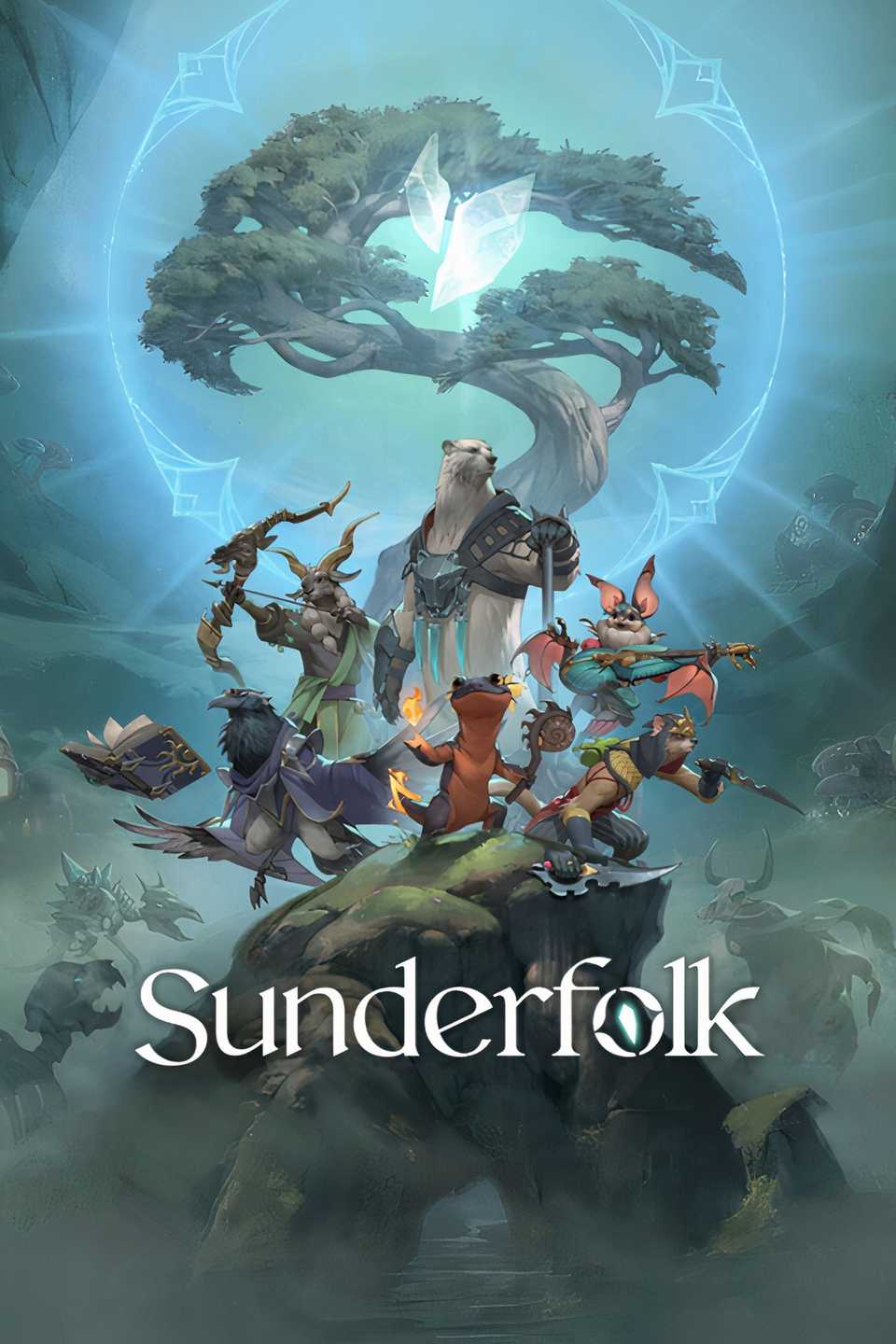
Sunderfolk
Released
April 23, 2025
ESRB
E10+ For Everyone 10+ // Fantasy Violence
Developer(s)
Secret Door
Multiplayer
Local Co-Op
Number of Players
1-4
