'/%3E%3C/svg%3E)

'/%3E%3Cpath%20fill='%23b2b2b2'%20d='M241%20382q0%2016%2017%2026%2017%2011%2042%2011t42-11q16-11%2017-26V269H241'/%3E%3Cpath%20fill='%239f7e00'%20d='M241%20379q0%2014%208%2023%209%209%2021%209%2014%200%2021-9%209-9%209-23V269h-59'/%3E%3Cpath%20d='M241%20339v-70h59v110q0%2014-9%2023l-6%205v-68h-15v72q-8%200-14-4v-68zm59%2040c0%2022%2015%2032%2029%2032%2021%200%2030-18%2030-32v-40h-59'/%3E%3Cpath%20fill='%239f7e00'%20d='M266%20277v5h2v12h-3v-5h2v-5h-9v5h2v5h-4v9h3v18h-5v10h34v-10h-5v-18h3v-9h-4v-5h2v-5h-9v5h2v5h-3v-12h2v-5zm42%20101q0%2010%206%2017%206%206%2015%207%2010-1%2016-7%206-7%206-17v-29h-43'/%3E%3Ccircle%20fill='%230044ad'%20cx='329.5'%20cy='372'%20r='6'/%3E%3Cellipse%20fill='%230044ad'%20cx='300'%20cy='340'%20rx='16'%20ry='21'/%3E%3C/svg%3E)



Jake Fillery is an Evergreen Editor for GameRant who has been writing lists, guides, and reviews since 2022. With thousands of engaging articles and guides, Jake loves conversations surrounding all things to do with gaming and pop culture.
As exciting as it is to jump back into Black Ops and Black Ops 2 on the PlayStation 5, complete with 1080p and 60fps, it also comes with a few performance issues that might be hindering your experience. Below, you’ll find accessible steps you can take on your PlayStation 5 to boost the performance and ensure there’s no stuttering, input lag, or jarring graphics to disrupt your fun in these classic COD titles.

Related
Black Ops 1 & 2: FAQs & What’s New (& What’s Missing)
Black Ops and Black Ops 2 has arrived on the PS4 and PS5, but there are a few notable missing features, and some more details you need to know about.
How to Fix Black Ops & Black Ops 2 Performance Issues on PS5
On your PS5 menu, you will want to head to the Settings. There are a few tweaks we can make that should help with your performance issues:
In Screen and Video, change the Resolution to 1080p. This can be found in the “Video Output” tab.
In Screen and Video, change the HDR to Off if it’s enabled. This can also be found in the “Video Output” tab.
In the Saved Data and Game/App Settings, change the Game Presets to “Performance Mode” in the “Performance Mode or Resolution Mode” section.
While the visual quality might be hindered for those using a 1440p monitor or higher, these settings on your PS5 should help with the issues the game has until (hopefully) Iron Galaxy Studios pushes out a fix, but these are ports, not remasters, so a fix isn’t guaranteed.
If you’re on a PlayStation 5 Pro, you might want to turn off Enhance PSSR (PlayStation Spectral Super Resolution), as this can help with performance and controller input lag.
How to Fix Black Ops & Black Ops 2 Controller Input Lag on PS5
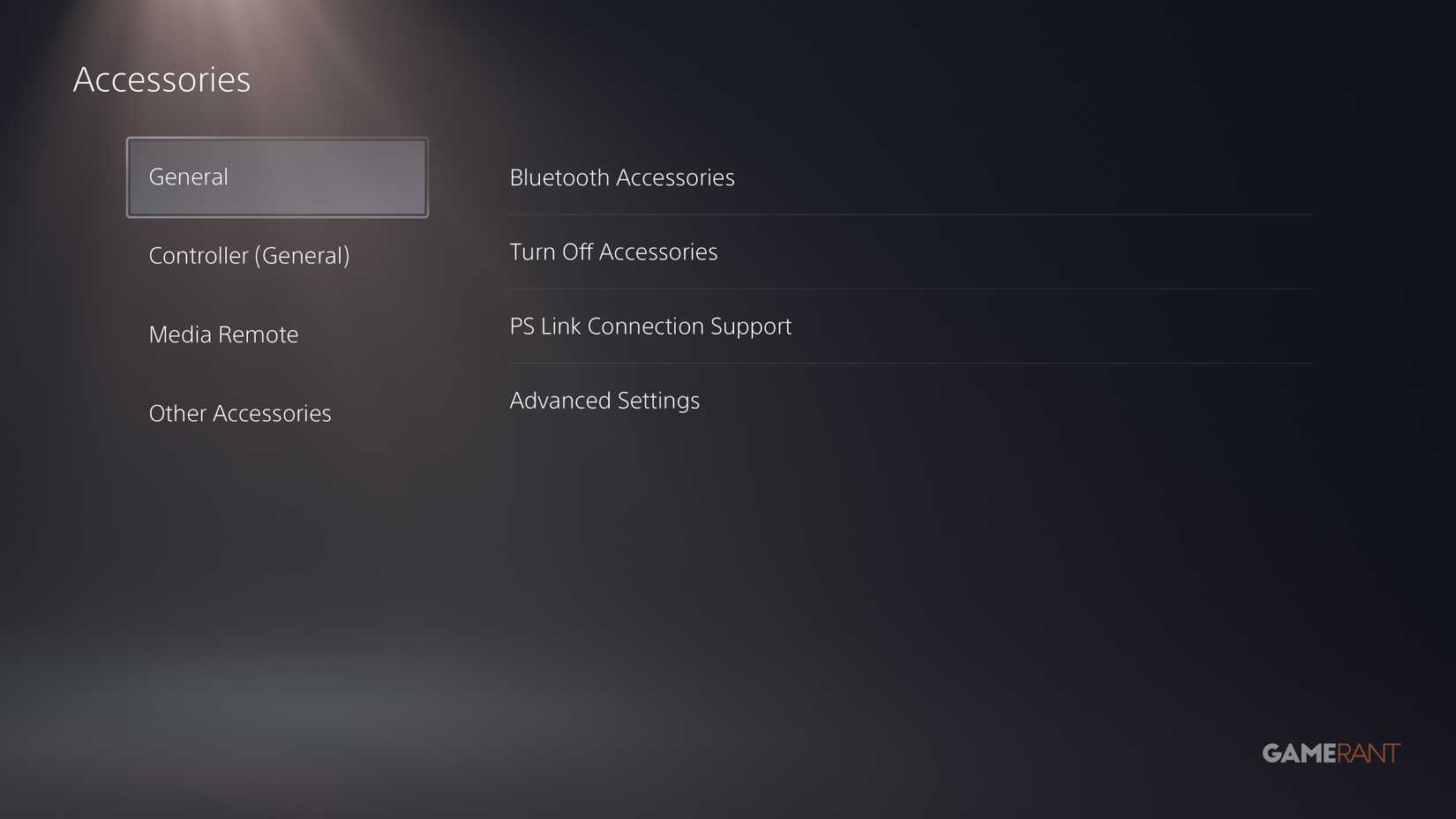
Your controller may also be suffering from input lag, and there’s a quick fix for this that might work:
In the Accessories settings, turn off Bluetooth Accessories and have your PS5 controller connected via a wired cable.
Set your Dead Zones to 0% on Controller Profiles.
While it might be annoying to use a cable, the wired connection can sometimes help with a direct connection. It’s not your controller that’s at fault, it’s just the ports being a tad buggy.
Hopefully, these unofficial fixes can help provide you with a smoother gameplay experience. If you’re interested in more Black Ops and Black Ops 2 content, we have some guides you might want to check out:
Call of Duty: Black Ops

8/10
Released
November 9, 2010
ESRB
M For Mature 17+ due to Blood and Gore, Intense Violence, Strong Language
Call of Duty: Black Ops II
8/10
Released
November 13, 2012
ESRB
M for Mature: Blood and Gore, Intense Violence, Strong Language, Suggestive Themes, Use of Drugs